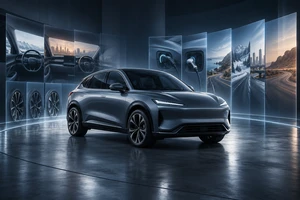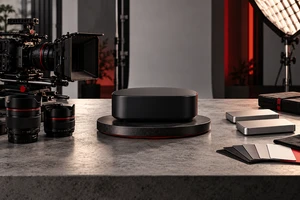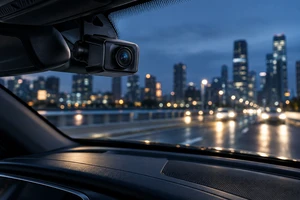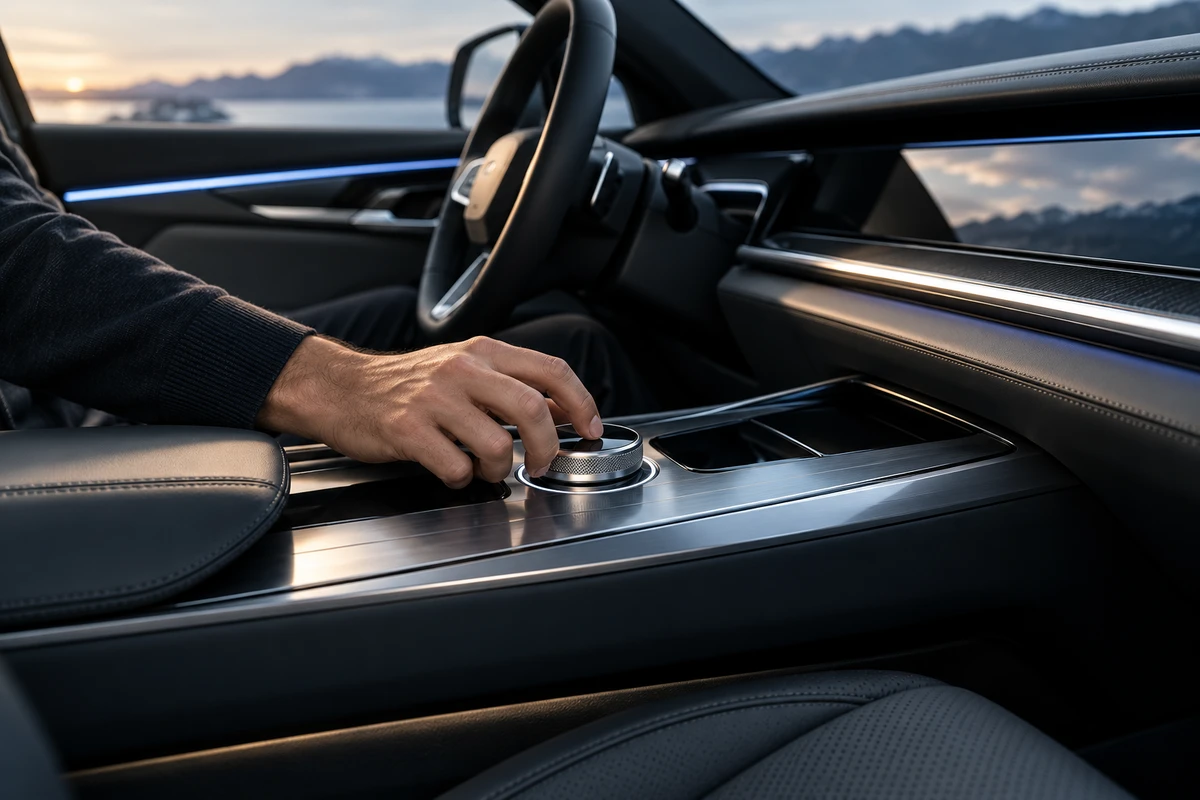
The problem may not appear until the seventh shot in review: the finger has already landed on the climate control, but the interface responds half a beat later. In the next shot, the cluster says the vehicle is moving while the exterior and the actor feel completely static. Each image looks polished on its own. Together, the feature feels staged.
The hard part of a smart cockpit video is not making the center display bright. It is making three timelines agree at the same moment: the user's action, the interface response and the vehicle state. A production plan therefore needs to decide, before the shoot, which information comes from the real display, which comes from a system capture and which may be composited in post.
Work Backward from the Master, Not from the Screen Replacement
In a fast brand film, the interface may only establish atmosphere and product identity. In a feature explainer, dealer presentation or international launch film, viewers can read menu steps, labels and vehicle status. Product teams can spot every mismatch.
Start by defining what the final audience must understand:
- Must labels, values and alerts remain readable?
- Does the feature require the vehicle to be parked, connected, signed in or in a particular gear?
- Will the same shot be delivered in Chinese, English and other languages?
- Is the screen showing a production build, a test build or a clearly labelled concept?
- Besides the landscape master, are vertical close-ups and clean versions required?
Those answers determine the source of the screen image. Shooting everything first and promising to “fix it in post” often means rebuilding gestures, reflections, depth of field and animation timing. It is rarely the cheaper route.
Three Ways to Capture the Interface
1. Film the real display when physical credibility matters
A real screen preserves finger contact, glass reflections, display brightness and the relationship between the UI and the surrounding controls. That is valuable for swipes, rotary-control interactions and immediate voice responses.
The trade-off is more on-set control. A mismatch between display refresh, dimming behaviour and camera shutter can produce rolling bands or flicker. Bright UI elements and dark trim can also exceed a comfortable exposure range. Panasonic's AJ-CX4000G manual, for example, documents a synchro scan mode with adjustable shutter speed. This does not guarantee that every display artifact disappears. It does show why the actual vehicle, display state and camera package should be tested together before the shoot.
2. Use system capture when information must be exact
Screen recording or an engineering output works well for menu paths, changing values, maps and multiple languages. It can lock the software build and gives product owners a clean frame-by-frame review source. On its own, however, it contains no glass, finger occlusion or practical light. Pasted directly onto a filmed display, it can look like a glowing sticker.
Treat the capture as an interface master, not as a substitute for cinematography. Record its resolution, frame rate, colour space, software build, language, account and connection state. Keep the start and end timecode for each interaction.
3. Combine live action and compositing for flexible delivery
A hybrid workflow often works best for a launch film. Film the actor, display glass, cabin materials and camera movement; use a product-approved system output for the interface. This keeps the physical contact while allowing controlled version and language changes.
The composite still has to be designed on set. Capture a clean plate and usable tracking information, and avoid holding a finger over critical information longer than necessary. Fast camera moves, complex reflections and very shallow focus all make a replacement easier to detect. Generative imagery has the same limitation when accuracy matters. ONCE's guide to asset handoffs between live action and AI compositing explains why shot ownership, file formats and acceptance criteria should be decided before production.
One Shot Has Three Clocks
A cockpit shot can be broken down with a simple synchronization sheet. It should describe not only what is filmed, but what happens first and what follows.
| Timeline | State to lock |
|---|---|
| Human action | Finger position, press duration, swipe distance, gaze and voice cue |
| UI response | Button highlight, page transition, animation end, sound or alert |
| Vehicle state | Gear, speed, lighting, climate, seat, sensor and connection status |
An automated-parking demonstration, for example, is more than “tap the button.” The shot list should identify the required vehicle conditions, when the control becomes available, when the finger triggers it, when the road model updates and when the vehicle begins to move. A feature film must map every visible road model, vehicle icon, parking space and driving prompt to the real vehicle state.
On set, create an action cue for every feature. A product engineer or assistant director calls the state, the actor performs the action, the capture system receives a sync marker and the cameras and sound roll for a few extra seconds. Post-production can then find three sources for the same event instead of guessing which tap belongs to which response.
Confirm Whether the Feature Can Be Used in Motion
A moving background should not become an excuse to show every function while driving. Google's current Android app quality guidance for cars distinguishes driving and parked experiences. Its Android Automotive OS guidance for parked apps also explains that some parked experiences must prevent use or stop playback when driving-related UX restrictions become active.
Those rules apply to the relevant Android platform and app categories; they are not a universal specification for every cockpit. They still make a useful production point: vehicle state is not set dressing. It may determine whether a feature is allowed to appear at all.
The product team should therefore confirm the operating conditions for every feature before the shoot. Scenes that require a driving state should be filmed in a closed or controlled environment, or built from separately captured road, vehicle and interface elements. An actor should never be asked to perform an unsafe or system-blocked interaction simply to satisfy a camera angle.
Localisation Changes More Than the Words
English, German or Arabic can change button width, line breaks and reading direction. Finger targets may move with the layout. For multilingual delivery, film a reusable physical performance where possible, then create a separate interface master for each language. Shots where the hand covers a critical control need a language-specific check rather than the assumption that one tap fits every layout.
Bind four details to every language version: software build, language-pack version, interface resolution and named approver. When copy changes, replace only the corresponding interface layer so that an approved Chinese state is not silently overwritten by a different English state.
What the Product Team Should Supply Before the Shoot
The interface-state sheet does not need to look elaborate. It needs to answer six practical questions:
- Which initial screen begins each feature, and what state ends it?
- Which account, network, map, permission and peripheral connections are required?
- Which gear, speed, door, window, seat and sensor conditions must be set?
- What differs between the production and test builds, and what must not appear on camera?
- Who approves the final copy, type and layout for each language?
- Which shots may use a composite, and which must retain the real display and response?
The same sheet should inform the storyboard, call sheet and review notes. Final approval then checks more than whether the display is readable: it checks touch position, response timing, vehicle conditions, build identification and localisation.
The credibility of a smart cockpit video often lives in that half beat. When the hand, interface and vehicle state all agree, the viewer can believe that the feature genuinely works this way. If you are preparing a launch for an infotainment system, driver-assistance feature or automotive-electronics product, send the software build, feature path, vehicle conditions and delivery languages to ONCE VISUAL. We can first divide the film into direct-capture, system-recording and composite shots, then turn that decision into a practical shoot and approval plan.